Where to find it: top right of every admin screen.
The header follows you across the whole admin. Six controls, left to right: Copilot, Background work, Conversations, Notifications, Dark mode and the Account menu. Each of the first four opens a panel that slides in from the right. The panel sits over the page, and the page underneath keeps its state, so you can open a panel, read it, close it and carry on where you were.

1. Copilot #
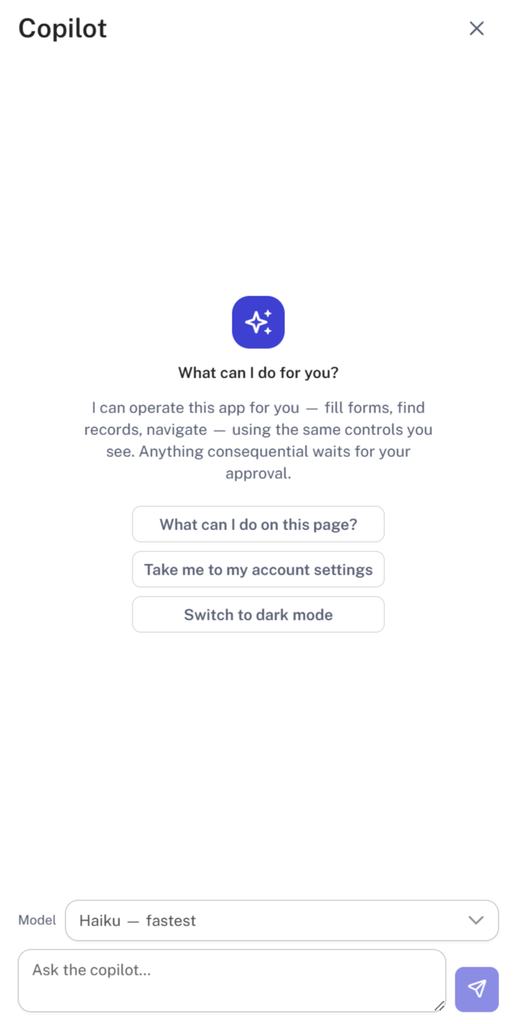
The sparkle icon on the left, highlighted in blue. Copilot is an assistant that can operate the admin on your behalf. In its own words: it can fill forms, find records and navigate, using the same controls you see — and anything consequential waits for your approval.
| Element | Purpose |
|---|---|
| Suggestion buttons | Three starters: What can I do on this page?, Take me to my account settings, Switch to dark mode |
| Model dropdown | Which model answers. Defaults to Haiku. |
| Message box | Ask the copilot… — type your request here |
| Microphone | Dictate instead of typing |
How to use it #
- Open Copilot from any screen. It knows which page you are on, so what can I do on this page? gives a page-specific answer.
- Ask in plain language — find every cancelled lesson for Alexandre this month, or take me to notification rules.
- If the request would change something, Copilot shows you what it intends to do and waits. Nothing is saved until you approve.
Choosing a model #
| Option | When to use it |
|---|---|
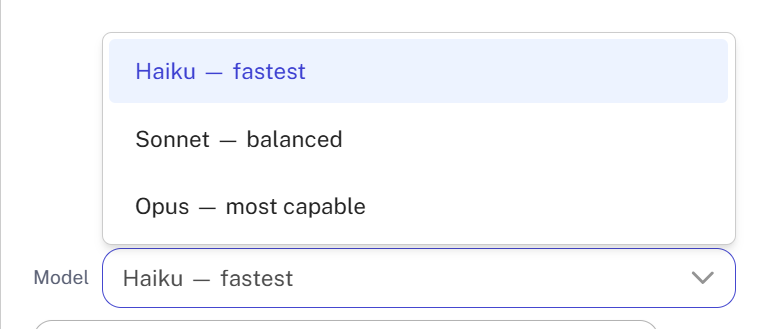
| Haiku — fastest | The default. Navigation, lookups, quick questions about the current page. |
| Sonnet — balanced | Multi-step work: comparing records, drafting a message, filling a longer form. |
| Opus — most capable | Reasoning across a lot of data where you want the best answer and can wait for it. |
Start on Haiku. Move up only when an answer comes back thin — the slower models cost you time on every request, including the simple ones.
On the approval step: read what Copilot proposes before approving, especially on money, agreements, or anything that sends a message to a teacher or parent. Approval is the safeguard.
2. Background work #
The hourglass icon. Long Copilot jobs keep running after you close the dialog, and this panel is where they live. While nothing is queued it reads Nothing running in the background. The panel also states the rule: long AI jobs keep going when you close the dialog, and finished results wait for a day.
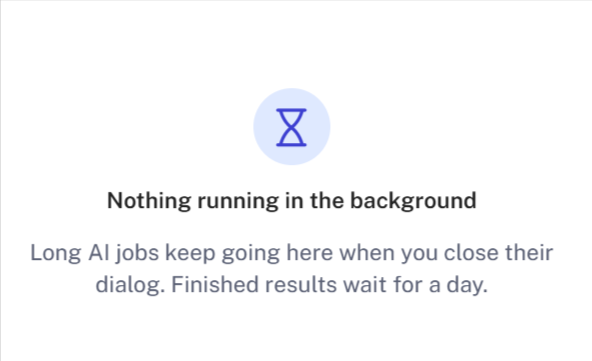
So if you ask Copilot for something slow, close the panel, get on with your work and come back for the result. Just do not leave it more than 24 hours — after that the result is gone and you would need to re-run the job.
3. Conversations #
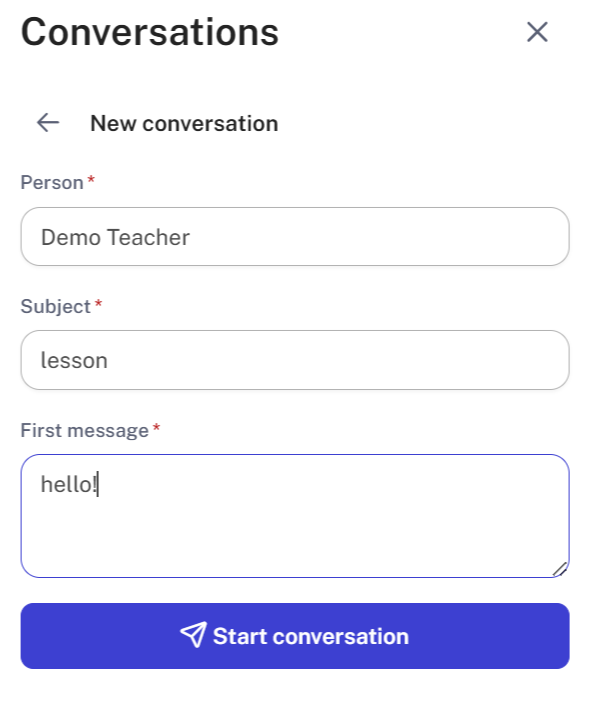
The speech-bubble icon. The badge shows the number of unhandled conversations, not the total. This is the school message inbox: threads between admins, teachers, parents and students.
- Opens on the most recent thread, with its title and participants shown as avatar chips.
- Messages are grouped by day and stamped with sender and time.
- The back arrow at the top left returns to the full list of conversations.
- Write a message at the bottom. Enter sends, Shift + Enter adds a line.
- A microphone button lets you dictate the reply.
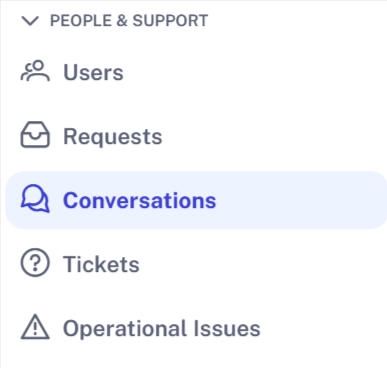
The badge count drops as threads are handled, which makes it a usable work queue — treat unhandled as your to-do list rather than a simple unread marker. For the full-page version with search and filters, use Conversations in the sidebar under People & Support.
4. Notifications #
The bell icon. The badge caps its display at 999. A running feed of system events — new messages, requests and other activity that needs your eye. Each entry shows the event headline, a short preview and an × to dismiss that single item. Clear all at the bottom empties the whole feed at once.
On a busy school this feed fills quickly and the badge pins at 999. Two habits help:
- Dismiss items individually while you work through them, so the feed stays a genuine queue.
- Use Clear all deliberately, not reflexively — it removes everything, including items you have not read.
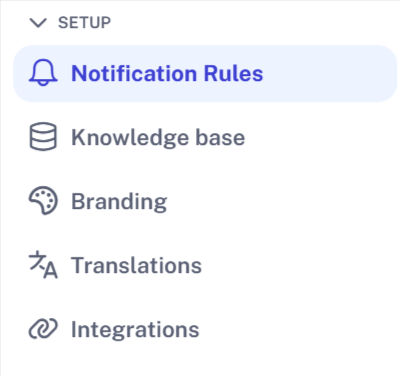
- If most of the noise is one event type, tune it at Setup → Notification Rules rather than clearing repeatedly.
5. Dark mode #
A toggle that switches the whole admin between light and dark. It applies immediately with no save, and it is a personal display preference — it does not affect what anyone else sees. You can also ask Copilot to switch it.
6. Account menu #
Your avatar, name and role at the far right. The chip shows who you are signed in as and your role, which is useful confirmation when several people share a workstation. Opening the menu gives one item: Log out.
Quick reference #
| Icon | Name | Badge means | Opens |
|---|---|---|---|
| Sparkle | Copilot | — | Assistant panel |
| Hourglass | Background work | — | Queued and finished AI jobs |
| Speech bubble | Conversations | Unhandled threads | Message inbox |
| Bell | Notifications | Unread events, caps at 999 | Event feed |
| Toggle | Dark mode | — | Switches theme instantly |
| Avatar | Account menu | — | Log out |


