Where to find it: left sidebar → Learning (under Educational). URL: /admin/learning
Learning is the teaching side of the school: lessons, streams, curriculum and reports in one place.
Part 1 — The Learning header #
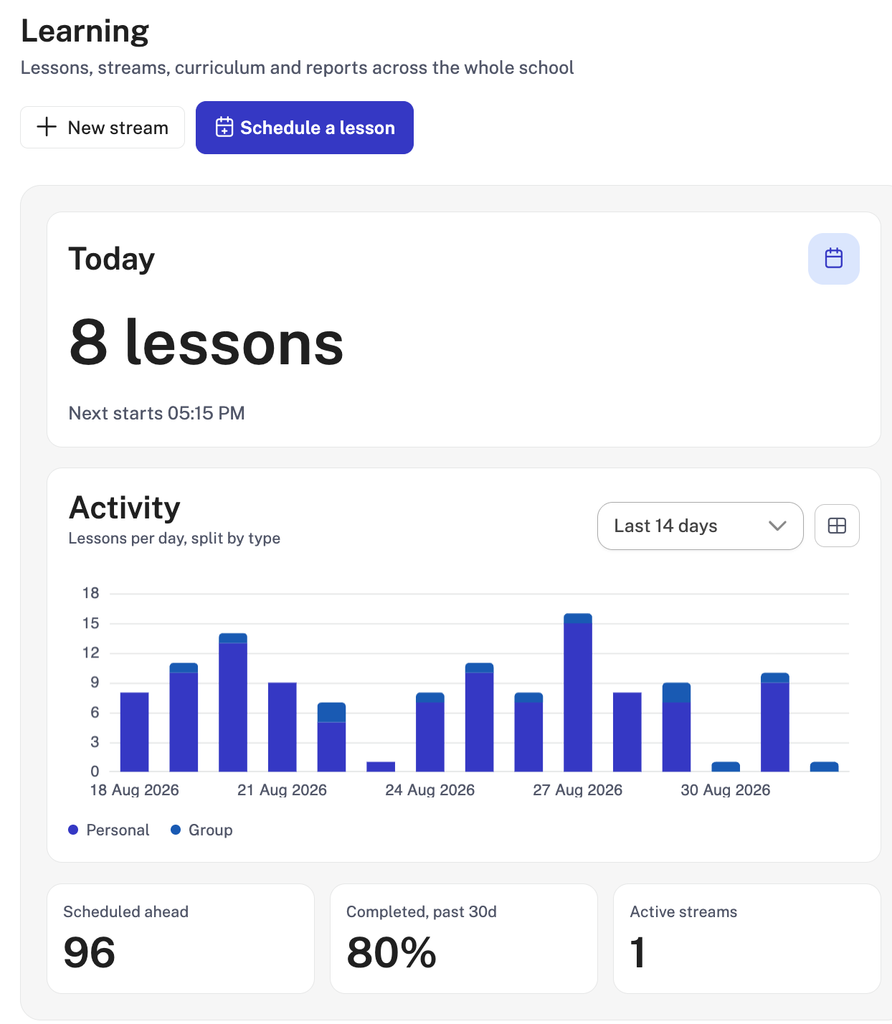
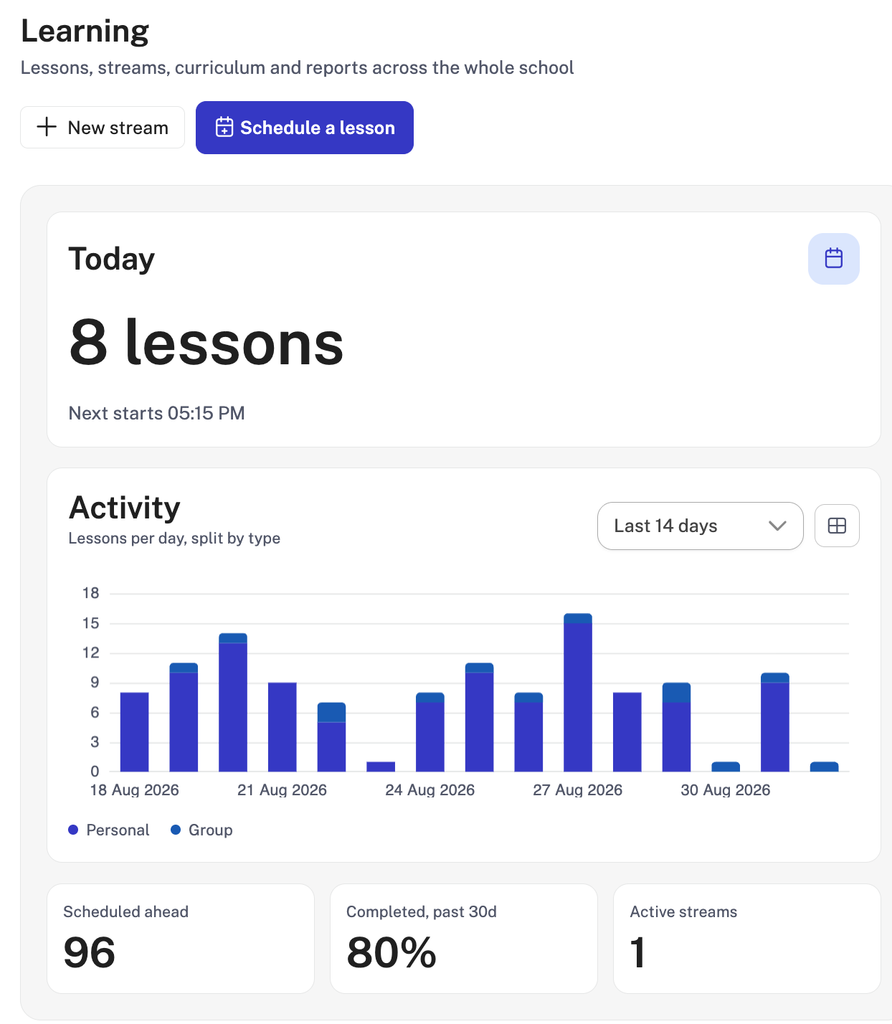
Everything in this part stays visible no matter which tab you are on, so the school teaching numbers are always in view.
Page actions #
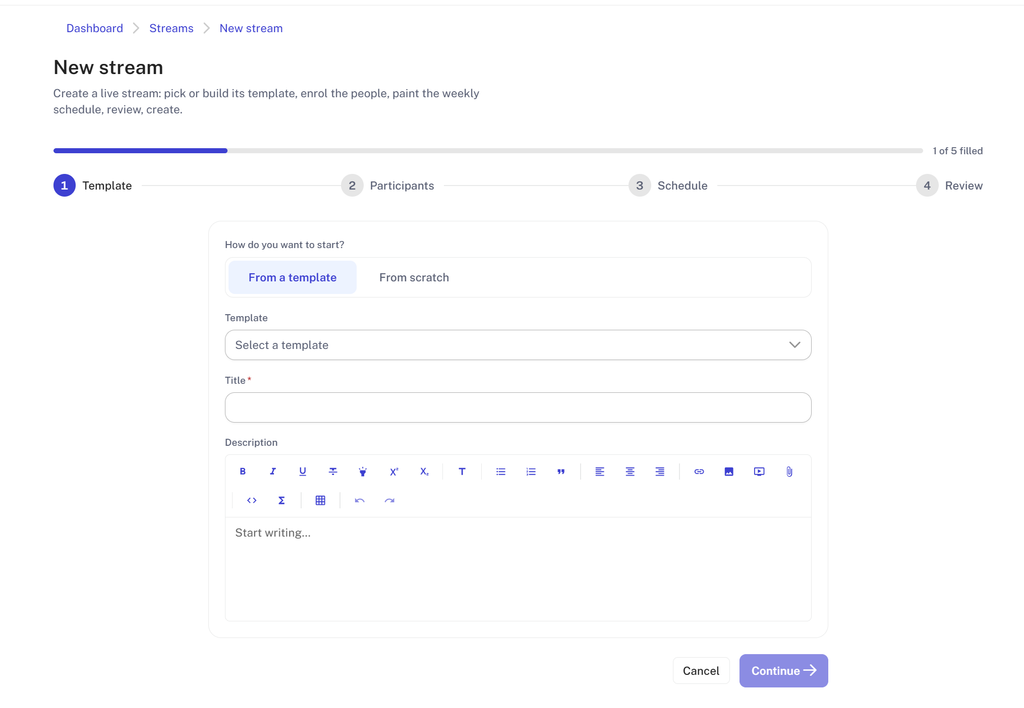
+ New stream creates a recurring group of sessions.
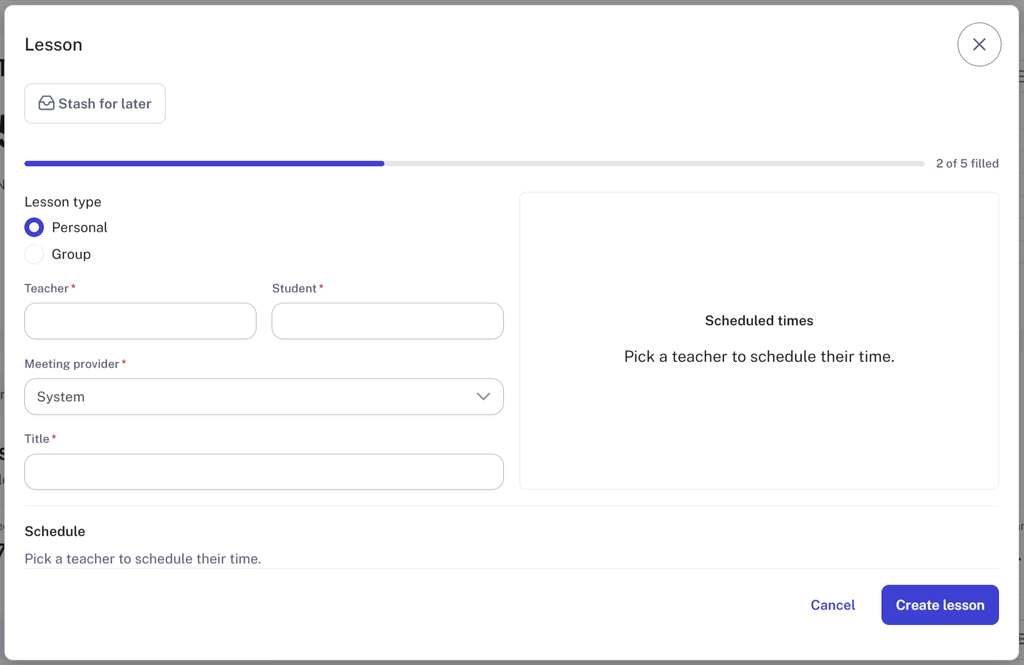
Schedule a lesson is the main action and opens the lesson scheduler.
Today #
How many lessons run today and when the next one starts. The small calendar icon opens the day view.
Activity #
A bar chart of lessons per day, split by type, colour-coded Personal and Group so you can see the balance between one-to-one and group teaching at a glance. The dropdown sets the range (Last 14 days by default) and the icon beside it switches to a table view of the same data, which is easier to read exact numbers from or copy out.
The three counters #
| Counter | Meaning |
|---|---|
| Scheduled ahead | Lessons booked and still to come |
| Completed, past 30d | Completion rate over the trailing 30 days, as a percentage |
| Active streams | Streams currently running |
Completed, past 30d is the health number to watch. A slipping percentage means lessons are being booked and then not happening.
Part 2 — The Overview tab #
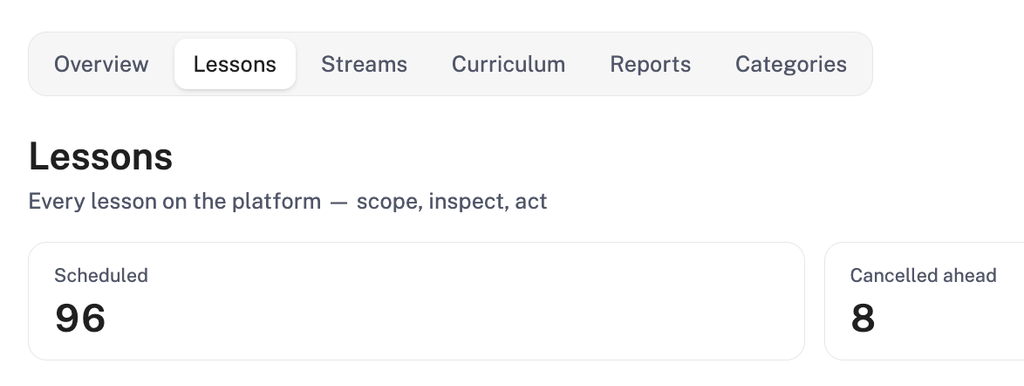
The landing tab, with tabs across the top for Overview, Lessons, Streams, Curriculum, Reports and Categories.
Lesson outcomes — global tallies across the whole platform, timestamped. Four figures each with its share: Upcoming, Cancelled ahead, Completed and Cancelled past. The percentages matter more than the raw counts. Cancelled-ahead as a share of upcoming is your forward risk; cancelled-past as a share of past is your historical reliability.
Live now — lessons in progress this second. When nothing is running it says so and offers See what is scheduled.
Streams health — each stream with its owner, student count, progress bar and status badge (ACTIVE, COMPLETED, DRAFT), plus sessions completed out of total.
Curriculum — counts of Courses, Programs and Lessons, with a recently added list showing the newest items and their dates.
Recent reports — progress reports written by teachers about students. Each row shows the pairing, the period covered, an average score out of 5, and a download icon.
Categories — a sunburst chart with categories in the inner ring and subjects in the outer, beside a ranked list giving each category a proportion bar, lesson count and share, and how many subjects sit under it. This is the panel to check when deciding where to put teaching capacity: it tells you what the school actually sells, as opposed to what it lists.
Part 3 — The Lessons tab #
URL: /admin/learning/lessons. Every lesson on the platform — scope, inspect, act.
Summary figures #
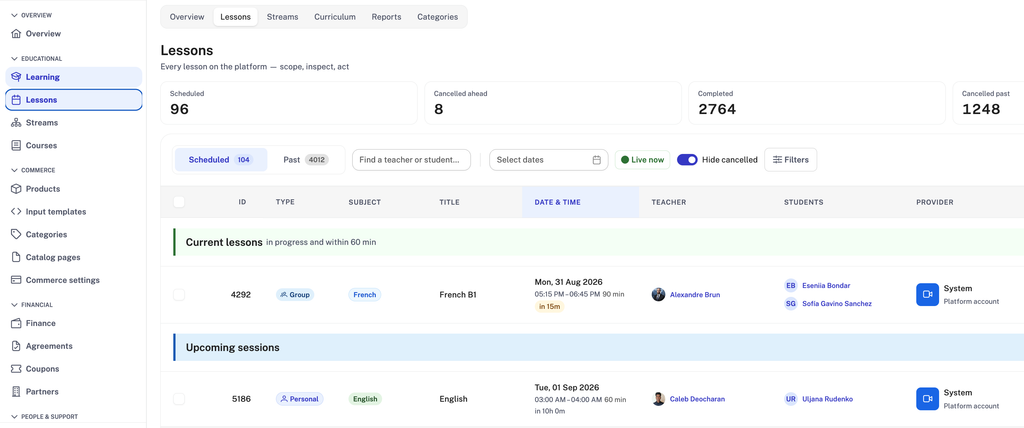
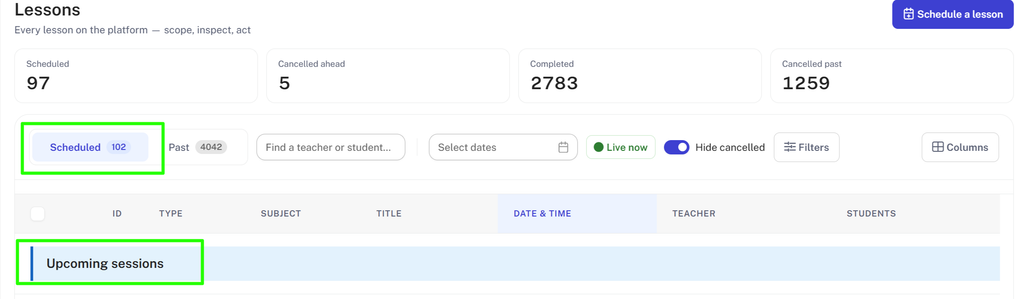
Four totals across the top: Scheduled, Cancelled ahead, Completed, Cancelled past. These are the same tallies as the Overview tab, repeated here so you keep context while filtering. They are platform-wide totals, not the count of rows currently filtered.
Scheduled and Past #
The segmented control on the left is the main switch, and each side carries its own count.
- Scheduled — everything still to come. Rows are grouped under an Upcoming sessions band and sorted by date and time ascending, so the next lesson is at the top. Each Date & Time cell carries a countdown, such as in 2h 11m.
- Past — everything already run or cancelled. Sorted newest first: the most recently finished lesson sits at the top and you work backwards through the term. There is no Upcoming sessions band, and the countdown is replaced by the plain duration.
Both sides use exactly the same columns, search, date picker and filters. Switching between them keeps your other filters applied, so you can set up a teacher filter once and flip between their upcoming and completed work. The sort is visible in the address bar, which means you can bookmark a particular view and come back to it.
Search, dates and Live now #
Find a teacher or student… narrows the list to that person’s lessons, searching both roles at once. Select dates is a range picker you can combine with Scheduled or Past to pull a specific week or month. Live now is a green indicator showing lessons currently in progress.

Hide cancelled #
A toggle, on by default. Cancelled lessons are hidden until you turn it off. Turn it off when you are investigating cancellations — otherwise the rows you are looking for will not appear, which is the single most common source of confusion on this page.
Filters #
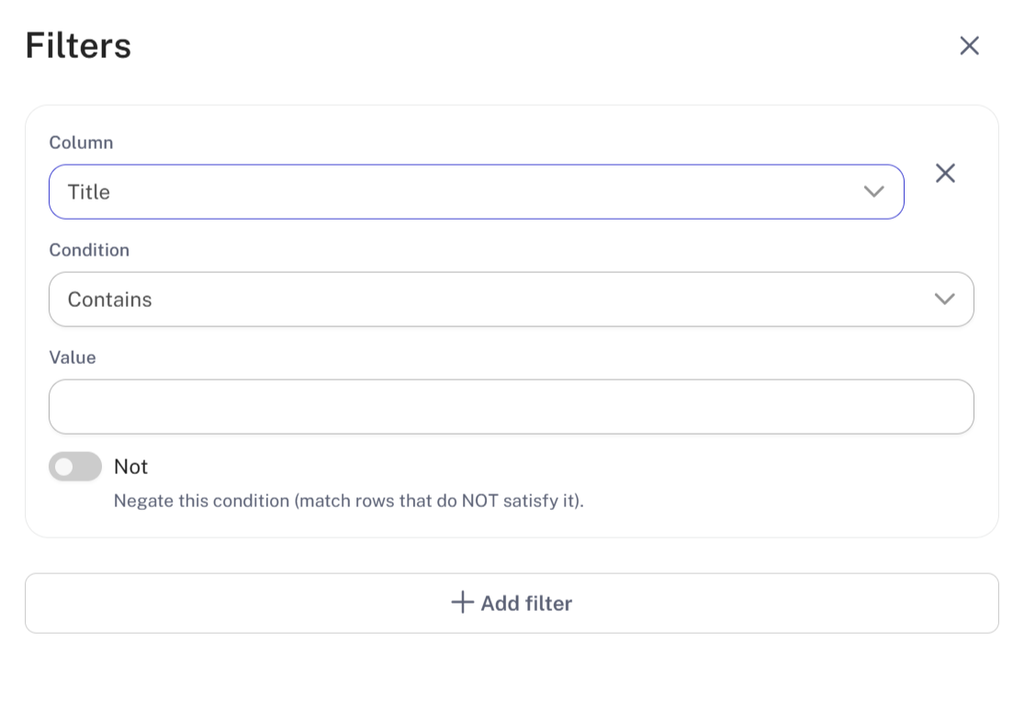
- Click Filters.
- Pick a field from the Column dropdown.
- Set the condition.
- + Add filter stacks another. Filters combine, narrowing the list with each one.
- The × beside a filter removes it; Clear all removes them all.
You can filter on five fields only: ID, Type, Subject, Title, Date & Time. This is narrower than the column list, and it matters. There is no filter for Teacher, Students or Status. To narrow by a person, use the search box instead — that is what it is there for. To narrow by status, use the Scheduled / Past switch and the Hide cancelled toggle, which between them cover the states you would want.
Columns #
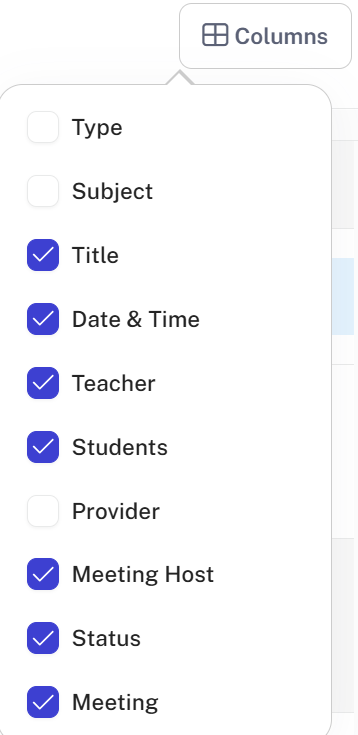
Opens a checklist controlling which columns the table shows: Type, Subject, Title, Date & Time, Teacher, Students, Provider, Meeting Host, Status, Meeting. Untick what you do not need — on a laptop screen, hiding Provider and Meeting Host makes the rest far more readable.
The table #
| Column | Contains |
|---|---|
| Checkbox | Select rows for bulk action; the header checkbox selects all |
| ID | The lesson numeric ID — quote this in support tickets |
| Type | Personal or Group badge |
| Subject | Clickable; filters the list to that subject |
| Title | The lesson name, such as French B1 or A-Level Economics |
| Date & Time | Date, start and end time, duration, and a relative countdown on scheduled lessons |
| Teacher | Avatar and name, clickable |
| Students | One chip per student, each clickable. Group lessons list several |
| Provider | Which video provider hosts it |
| Meeting Host | The host account email address |
| Status | Active, and other states such as cancelled or completed |
| Meeting | Join, which opens the classroom in a new tab, and Copy link |
Names are links. Clicking a teacher or student opens their profile with the right tab already selected. There is also a message action on each person, which opens a chat with them without leaving the lessons list.
Common tasks #
Find today’s next lesson. Lessons tab → Scheduled. The top row under Upcoming sessions is next. Read the countdown.
Join or share a classroom. Find the row, then Join to enter or Copy link to send the classroom link to a teacher or parent.
Investigate a teacher’s cancellations. Switch Hide cancelled off, type the teacher’s name in the search box, switch to Past, set a date range. Cancelled rows now appear.
Check a group lesson roster. Filter Type to Group, or scan for the Group badge. The Students column lists every enrolled student as a separate chip.
Pull a month for reporting. Past → Select dates for the month → Columns to hide what you do not need. Read the summary figures at the top for the totals.
Investigate a specific lesson. Note the ID. It is the reference support will ask for, and it stays stable even if the title changes.
Things worth knowing #
- Hide cancelled defaults to on. If a lesson is not there, check this toggle first.
- The reporting window on the Overview dashboard does not apply here. Lessons has its own date picker.
- The four summary figures at the top are platform-wide totals, not the count of rows currently filtered.
- Scheduled and Past are two views of one dataset, and filters carry across when you switch.


