Where to find it: left sidebar → Overview. URL: /admin
The Overview is the first screen you land on after signing in. It answers one question: where does the school stand right now, and over the period you choose. Nothing on this page is edited directly — every figure links through to the section where the underlying records live.
1. Reporting window #
The strip at the top of the page controls the date range for everything in the Money section.

| Control | What it does |
|---|---|
| Date field | Opens a calendar. Pick a start date and an end date. |
| This month | First day of the current month through today. |
| Last 30 days | Rolling 30-day window ending today. |
| This quarter | Current calendar quarter to date. |
| Year to date | 1 January through today. |
| Refresh everything | Re-pulls all figures without reloading the browser. |
Important: the window applies only to the money figures. The Teaching and People sections always show where things stand now, regardless of what you pick here.
2. Money #
Revenue from day one #
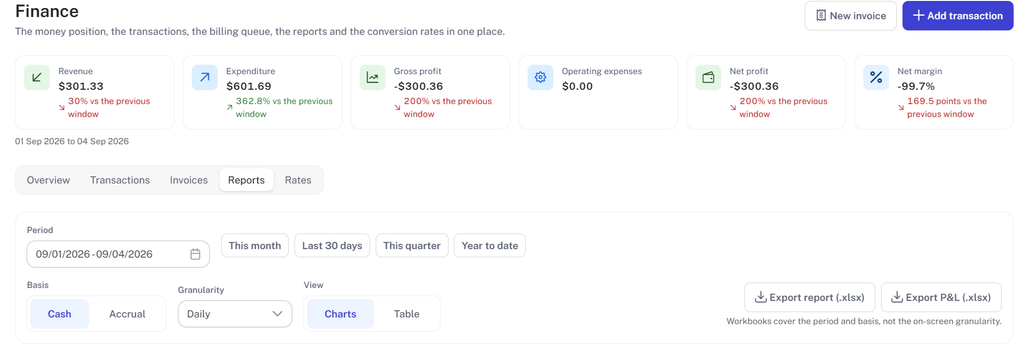
The large figure at the top is lifetime revenue — every top-up and revenue entry ever booked to the platform wallet, not filtered by your reporting window. Open the financial report takes you to Finance → Reports with your current date range already applied.
The money cards #
| Card | Tag | What it counts |
|---|---|---|
| Revenue | Money in | Top-ups and other revenue booked to the platform wallet |
| Refund payments | Money out | Money returned to customers out of the platform wallet |
| Teacher payouts | Money out | Salary payouts made to teachers |
| Commission payouts | Money out | Commission paid out on referred business |
| Staff payouts | Money out | Management and staff compensation |
| Marketing | Money out | Marketing spend booked to the platform wallet |
| Other expenses | Money out | Bank charges, software subscriptions, tutoring tools, other operating costs |
| Profit, cash method | Position | Revenue in the window minus every outflow above. Red when negative. |
| Platform balance | Position | Every completed platform-wallet movement up to the end of the window. Green when positive. |
Each of the seven flow cards has a View transactions link that opens the Finance → Transactions list already filtered to that category and your date range. The two Position cards are calculated rather than filtered, so they have no transactions link.
Charts #
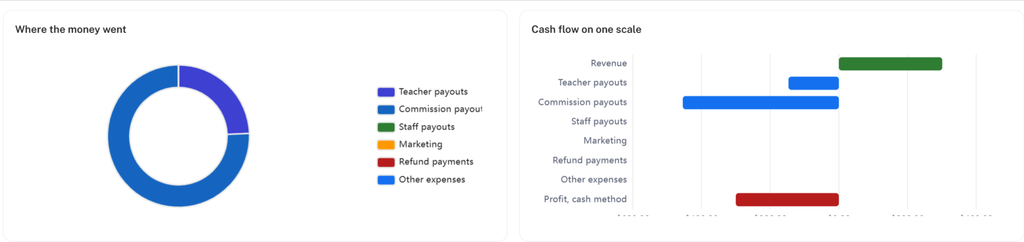
- Where the money went — a doughnut breaking outflows into Teacher payouts, Commission payouts, Staff payouts, Marketing, Refund payments and Other expenses.
- Cash flow on one scale — a horizontal bar chart putting revenue and every outflow on a single axis. Profit sits at the bottom and points left when negative.
3. Teaching #
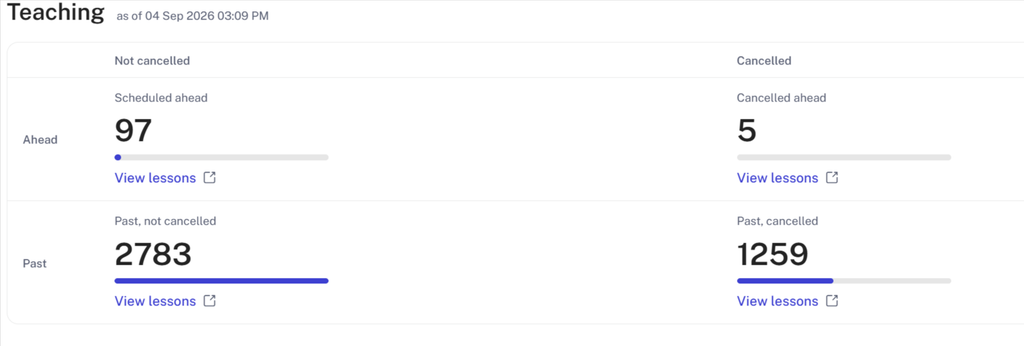
A live snapshot of lesson volume, timestamped in the section heading. It ignores the reporting window. The grid splits Ahead / Past down the side and Not cancelled / Cancelled across the top.
| Not cancelled | Cancelled | |
|---|---|---|
| Ahead | Scheduled ahead | Cancelled ahead |
| Past | Past, not cancelled | Past, cancelled |
Each cell shows a count, a proportion bar and a View lessons link into the Lessons list filtered to match. Open the lesson schedule goes to the full Learning → Lessons view.
4. People #
Five counters, on a rolling trailing month.

| Counter | Definition |
|---|---|
| Active students | Had, or has, a lesson that is not cancelled ending within the last month or later |
| Active teachers | Same rule, applied to teachers |
| Active agreements | Teacher agreements currently active |
| All teachers | Every teacher on the platform, active or not |
| Partners | Every partner on the platform |
Watch the gap between Active teachers and All teachers — a large difference means a lot of dormant teacher accounts.
5. Student rate multiplier #
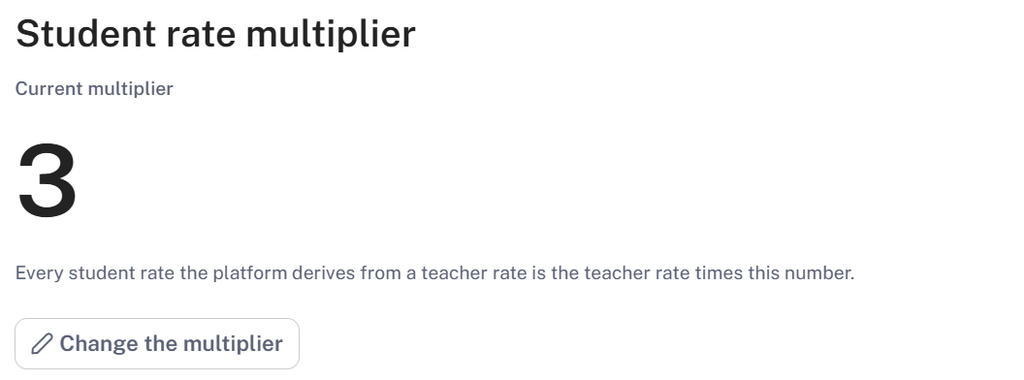
Every student rate the platform derives comes from the teacher rate times this number. If a teacher is paid 10 and the multiplier is 3, the student is charged 30. Change the multiplier opens the editor. This is a global setting, so treat it as a pricing decision rather than a routine edit.
6. Quick actions #
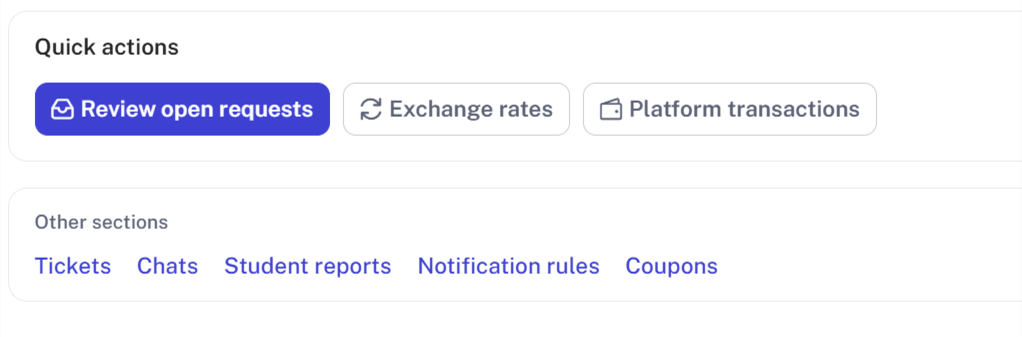
Buttons: Review open requests, Exchange rates, Platform transactions. Other sections: Tickets, Chats, Student reports, Notification rules, Coupons. Same destinations as the sidebar, put within one click.
Everyday use #
- Open Overview each morning. Leave the window on This month unless you are reconciling.
- Check Profit, cash method and Platform balance first — those two tell you whether the month is working.
- Glance at Cancelled ahead. A rising number there is an early warning that shows up in revenue weeks later.
- Use Review open requests if the count looks unusual.
- Click through from the card rather than navigating from the sidebar — the link carries your filters with it.


