You can assign any type of homework to a student: writing, listening, reading, and so on.
How to assign homework: #
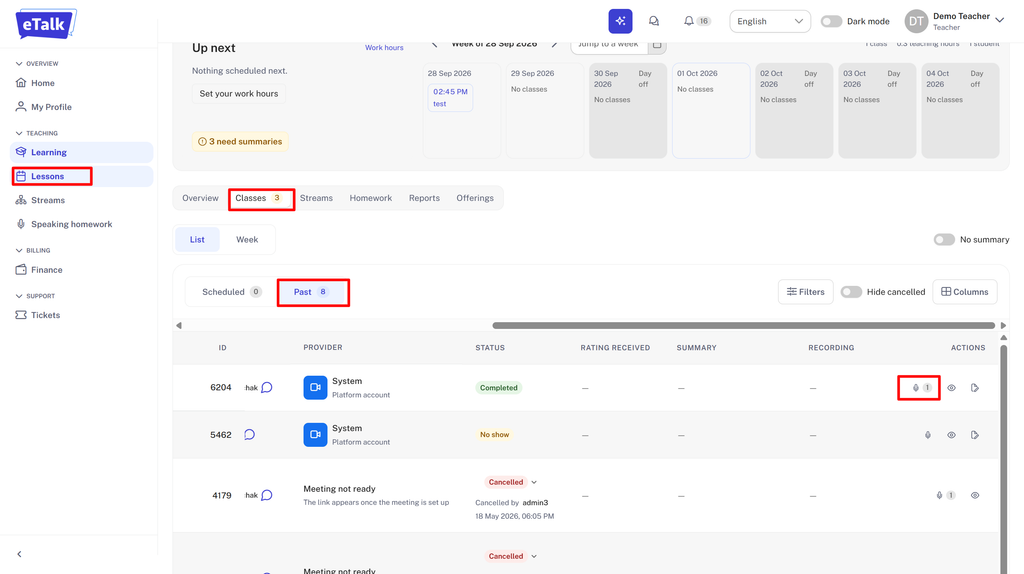
- Go to “Lessons” > ‘Classes’ > “Past.”
- Click the microphone icon next to the lesson you need.
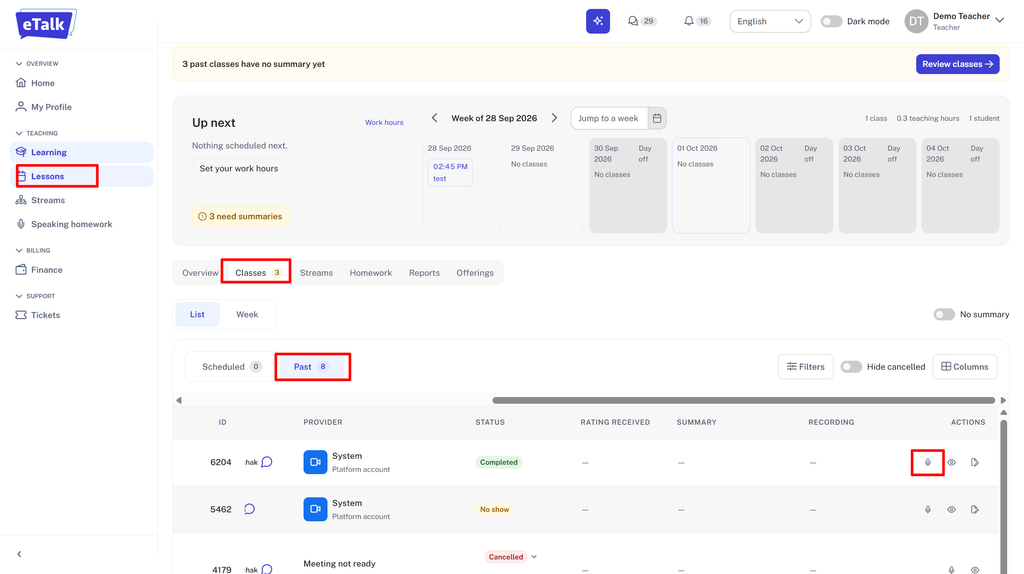
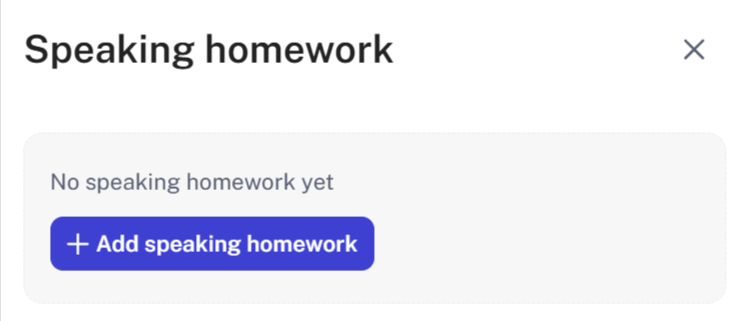
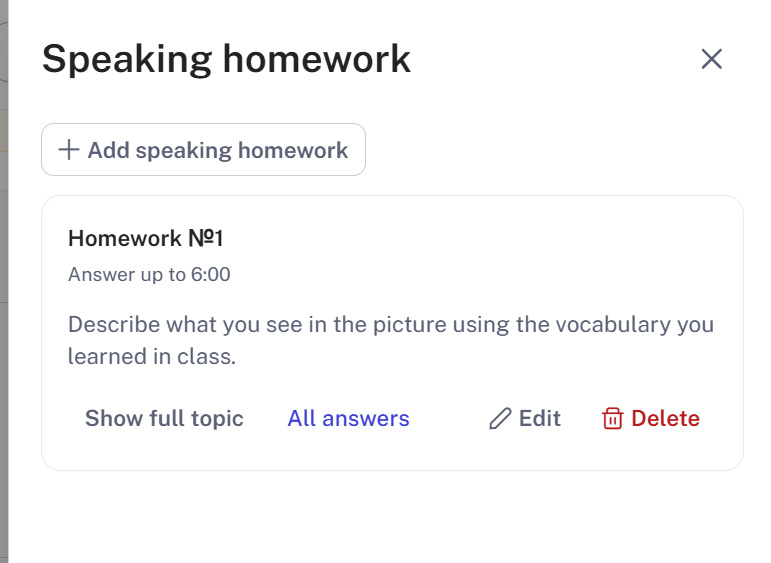
3. The “Speaking Homework” window will open. Click on “Add Speaking Homework”.
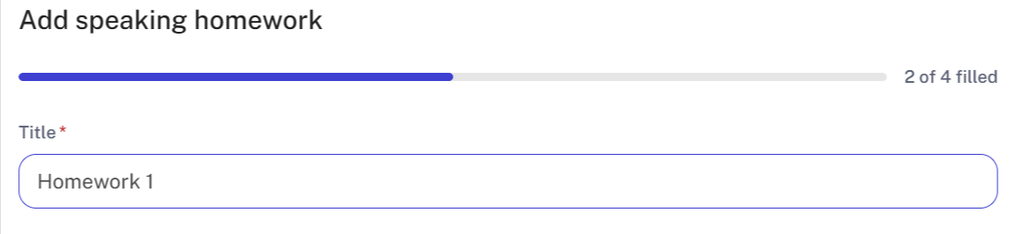
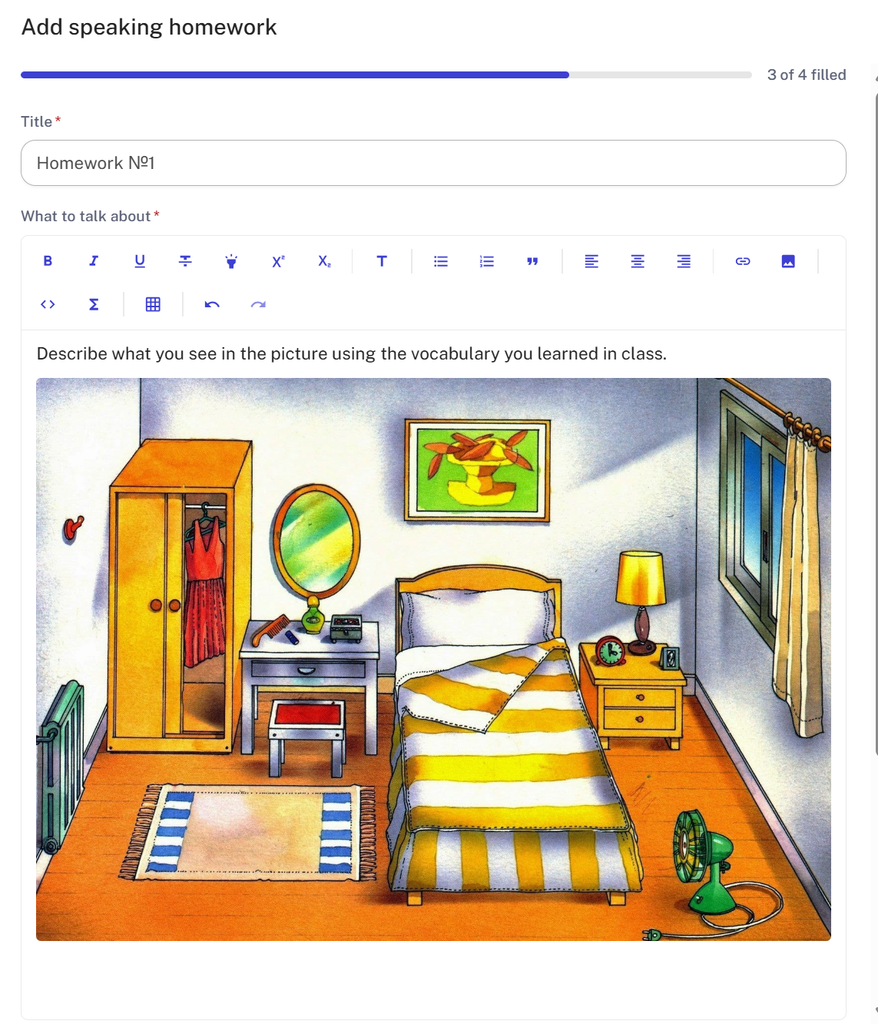
4. Enter the title.
5. In the “What to talk about” section, you can write down absolutely any task, not just oral ones.
A student can respond to you either by voice or text, and can attach photos, links, etc.
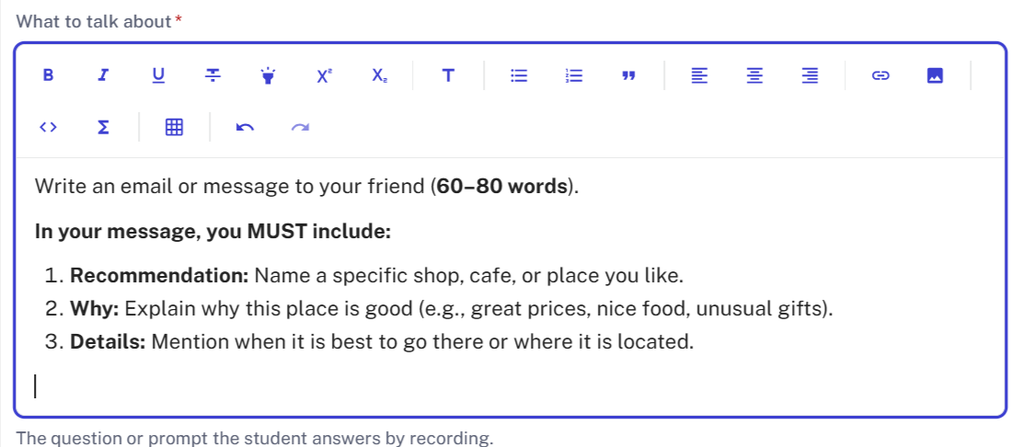
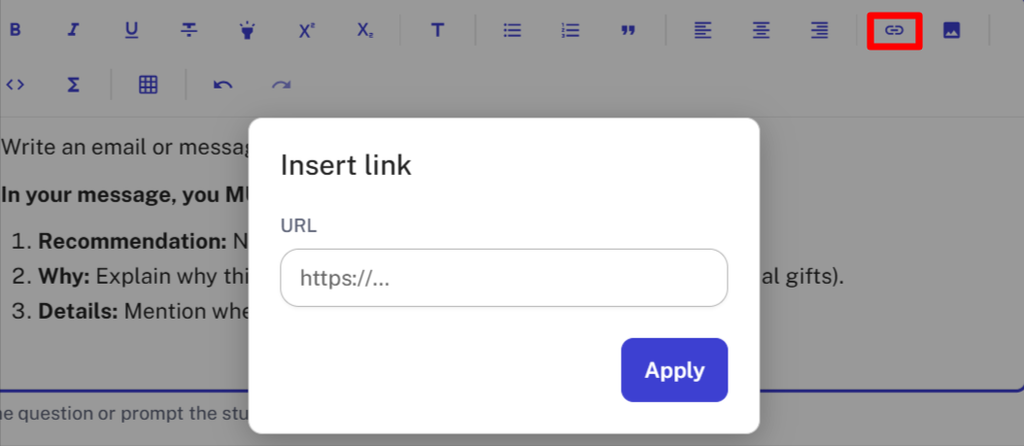
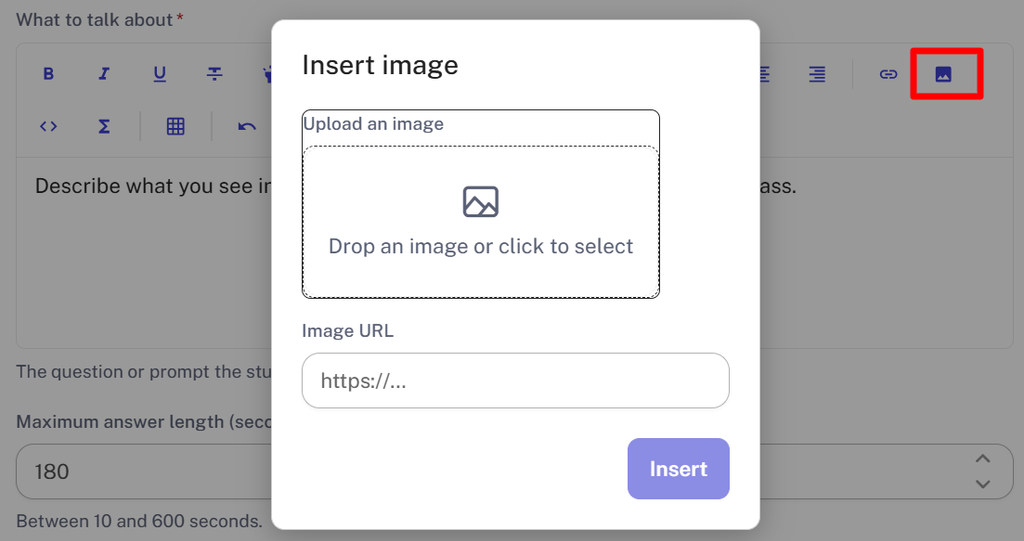
Please note that you can also include links (to videos, files, etc.) and images.
6. Next, specify the required length of the student’s response. If the assignment is NOT an oral one, you can leave the default value.
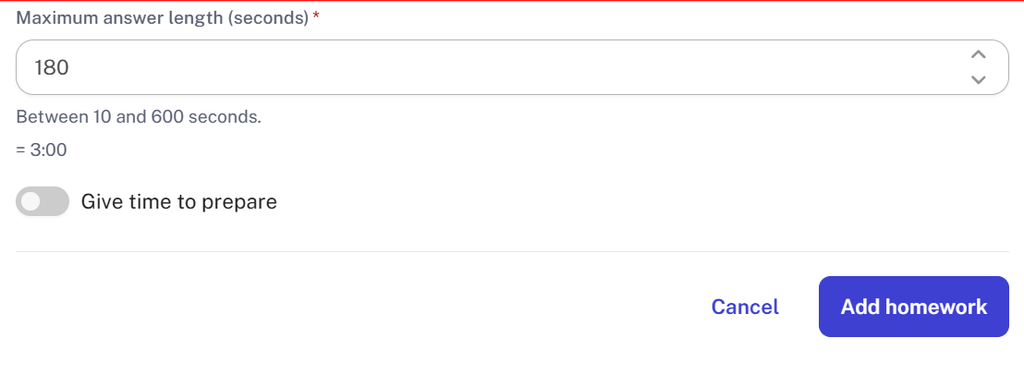
7. When you’re done adding assignments, click “Add Homework.”
After adding homework, you can review it, delete it, or make changes.
To do this, go back to your past classes (“Lessons” > “Classes” > “Past”), find the lesson you need, and click the microphone icon again.
The assigned homework will appear on your screen.
How to check homework #
Once a student has completed their homework, you can check it, assign a grade, provide feedback, and so on.
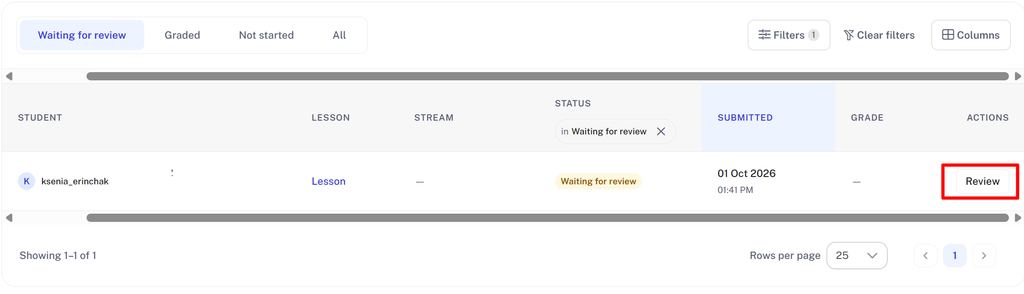
- Go to the “Speaking Homework” section in the left-hand menu. Then go to “Waiting for Review.”
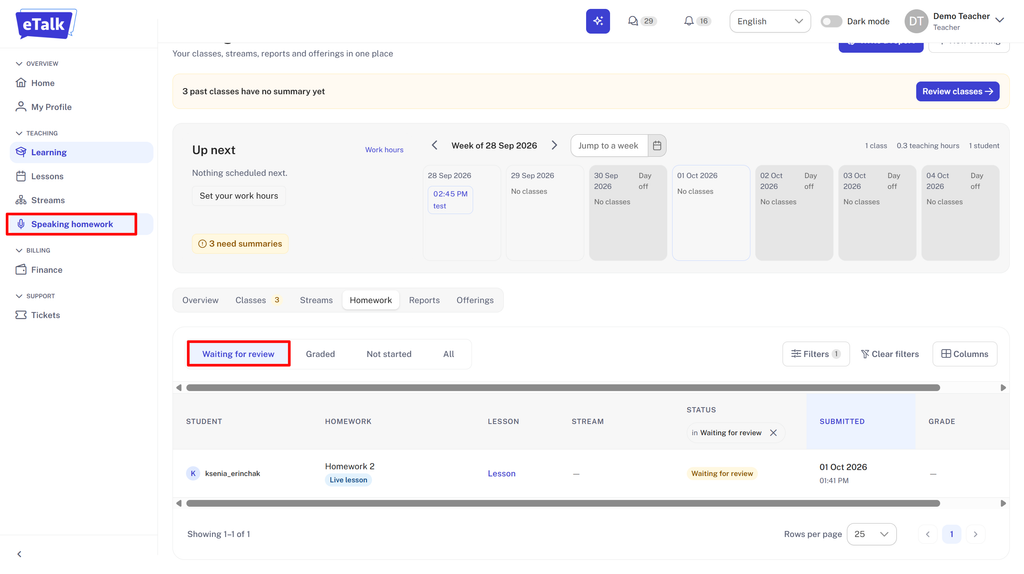
2. Next to the student whose homework you want to check, click “Review.”
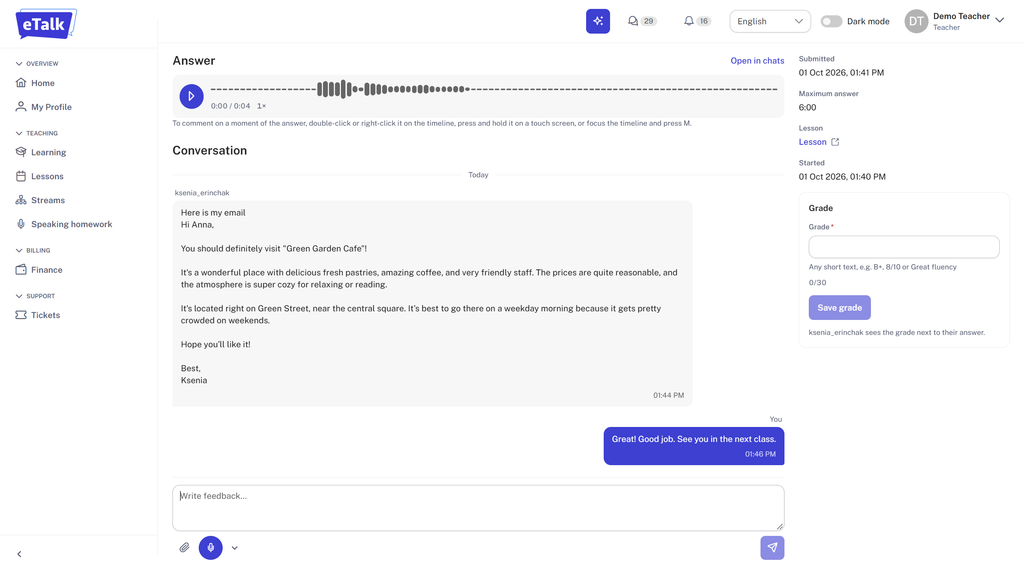
3. You’ll see a dialogue with the student, their voice response (if the assignment was oral), messages, files, and so on. After reviewing the assignments, you can provide feedback in writing or via voice message.
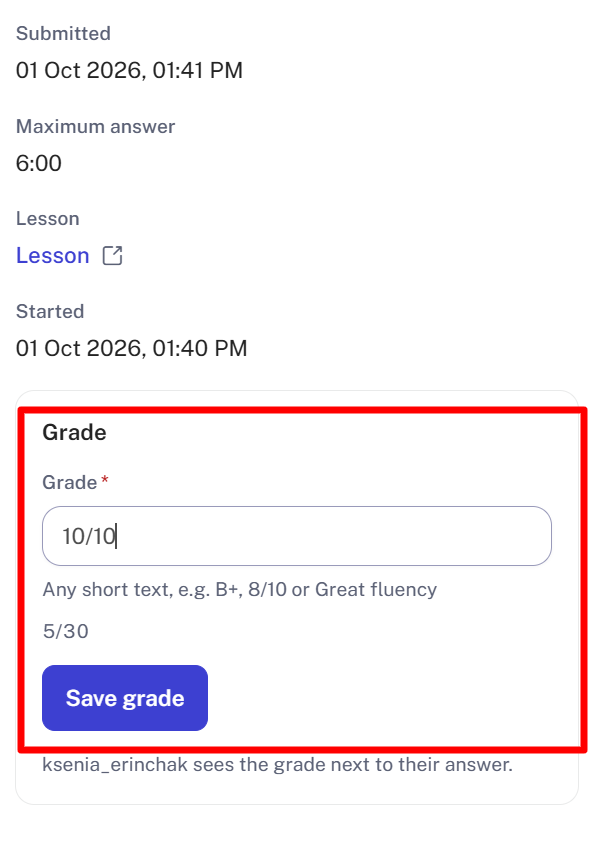
You should also evaluate the student’s work by assigning a grade. When you’re done, don’t forget to click “Save grade.”
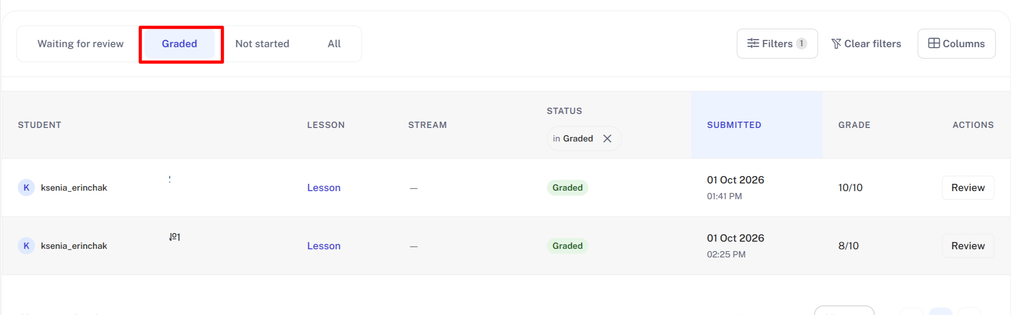
If you need to return to an assignment that has already been graded, you can find it in the “Graded” section.